















Practise your DCA and hedge rules first. Then run them on MT5.
Set up the buy side and the sell side separately: lot sizing, a DCA ladder in points, filters for the first order and take-profit rules. Practise in Replay, then the EA runs those exact rules inside your MT5.
Free plan · No card neededQuestions you might be asking yourself
- Everyone says DCA and hedging blow accounts. How do I check for myself?Don't take anyone's word for it. AutoDrive Replay plays back recorded ticks in your browser on a practice balance, so you can watch your own DCA ladder and hedge work through real price moves. Nothing is sent to MT5.
- How deep can a DCA ladder go against me before price turns?Before you switch a side on, click DCA in the chart toolbar, choose Buy side or Sell side and drag from one price to another. It estimates the whole ladder's floating P/L from that side's lot, Multiplier and spacing.
- I can't watch the screen all day. What then?AutoDrive runs inside the EA on your MT5, so it keeps working with the browser closed. Open PipLoop on your phone to switch it OFF, check positions or close everything. MT5 must keep running; many traders use a VPS.
How AutoDrive works
- 1Connect your MT5 accountAttach the PipLoop EA with your EA API key, open AutoDrive and pick the account. The status line should start with EA connected.
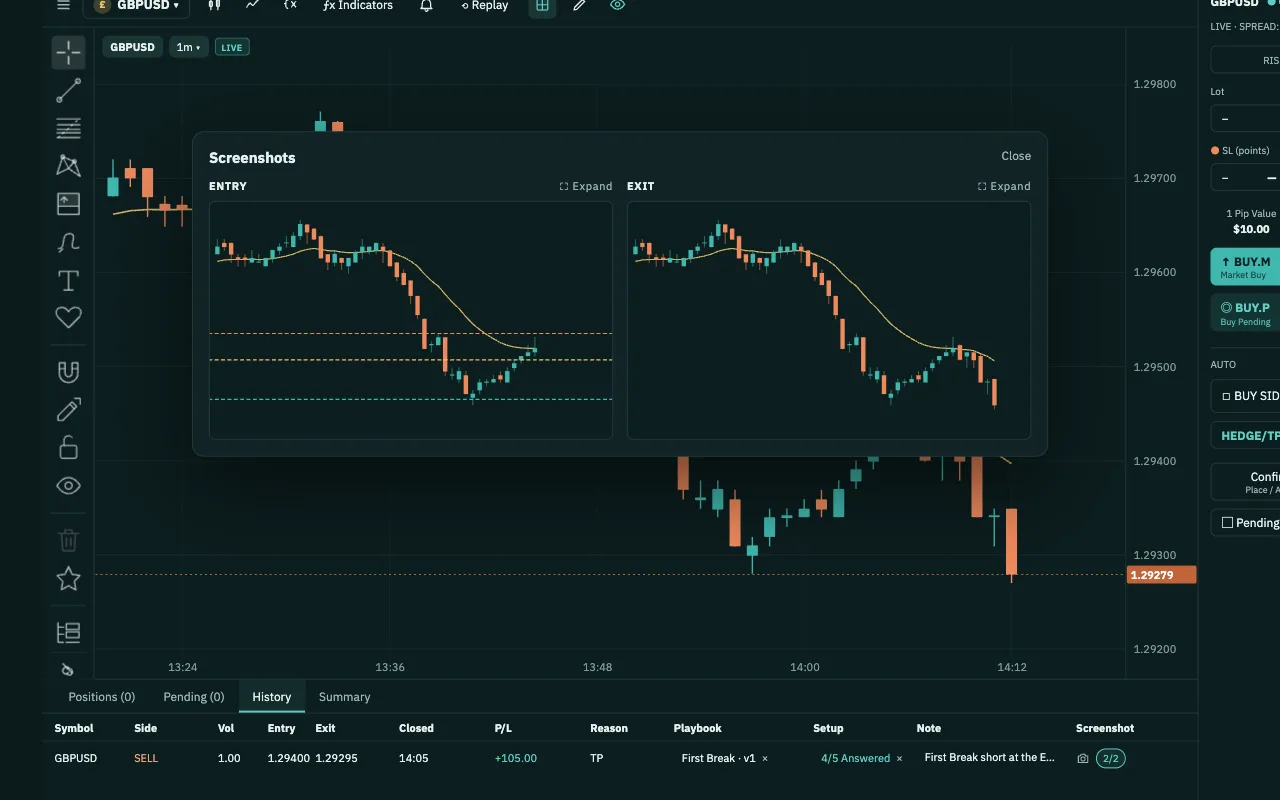
- 2Practise in Replay firstClick Replay and pick a symbol with recorded ticks, a date range or Random start, and a Starting balance. Each new session starts with all automation OFF.
- 3Set the BUY SIDE and SELL SIDEOpen each side with its gear button: Position sizing, DCA ladder, First Order Filters and Profit management. Wait for EA settings applied before you rely on a value.
- 4Turn a side on, add a hedgeBUY or SELL in the quick controls switches that side's automatic entries ON or OFF. Click HEDGE/TP to drag a HEDGE line and a TOTAL TP line, then Confirm each one.
- 5Watch it from your desk or phoneFollow Positions, Pending, History and Summary. Setting the master switch to OFF pauses new entries. CLOSE ALL asks for a second click or tap, then closes AutoDrive's positions.
What you get in AutoDrive
- Buy and sell set apartEach side has its own lot, Multiplier, max lot, max orders, DCA ladder and TP rules, plus EMA, time and price-zone filters for its first order.
- Multi-level DCA in pointsTwo spacing tiers in points, split at an order number. Trigger on distance, or distance plus EMA, one-way or two-way.
- Hedge and Total TP linesDrag HEDGE and TOTAL TP onto the chart. With both on, new entries and DCA stop, and whichever level price hits first runs while the other is cancelled.
- Freeze, Advance Cut, Daily ProfitFreeze locks your exposure by balancing buys and sells, on a schedule or at a floating-loss limit. Advance Cut and Daily Profit close positions at the amounts you set.
- Replay on real tick dataA separate PAPER account on recorded Bid/Ask ticks, at 1× to 150×. Pause to change settings, or trade by hand at the paused price.
- The same controls on your phoneRight in your phone's browser: master switch, Cockpit, Positions, Strategy and Summary, plus FREEZE, ADV CUT, HEDGE/TP and MANUAL. No app to install.
You keep your money, your password and the off switch.
- We never touch your moneyDeposits and withdrawals happen at the broker you chose. PipLoop doesn't receive, hold or move your money.
- No broker passwordYou connect with an EA key pasted into your MT5. PipLoop never asks for your broker account password.
- The off switch is yoursTurn AutoDrive off or stop a Flow at any time, from your phone too, and choose to keep or close all positions. To cut the link completely, revoke the key in Settings or remove the EA from MT5.
- Practise on a DEMO accountWe recommend practising on a DEMO account: real market prices, no real money.
Where AutoDrive fits in the loop
- STEP 1 · PLANPlaybook
- STEP 2 · VERIFYBacktestFlow Builder
- STEP 3 · APPLYChart WorkspaceAutoDrive
- STEP 4 · IMPROVEJournal & AnalyticsCopilot AI
Questions about AutoDrive
No. You choose the side, sizes, spacing, filters and take-profit rules, and AutoDrive follows those rules on your MT5. It doesn't read the trend for you. Neither DCA nor a hedge makes a result certain: DCA adds orders as price moves, and a hedge locks the risk in place rather than removing it.
Your MT5 terminal does. AutoDrive runs inside the EA in MT5, with Algo Trading on, so the terminal has to keep running; many traders use a VPS for that. The web and phone are only for control: close them and the EA carries on with its last confirmed settings.
Not yet. For now, AutoDrive runs on DEMO accounts that use hedging, not netting. On any other account it tells you so and sends no automatic entries. Practise in Replay first, then on a DEMO account.
Set the master switch to OFF. New automatic entries pause, while open positions and their protection stay managed. To close, use CLOSE ALL, which asks for a second click or tap, or CLOSE on one side with ALL, PROFIT or LOSS. To cut the link completely, remove the EA from MT5.
Close, but not identical. Replay runs your AutoDrive settings on recorded Bid/Ask ticks, so the spread follows the data. It has no margin, stop-out, swap or commission, and nothing reaches MT5. Use the DCA tool to see what a ladder can lose, and check margin on DEMO.
From PipLoop's recorded tick datasets, not your broker's feed. That's why Replay setup lists only symbols with recorded ticks.
Practise in Replay first. Then let AutoDrive run your rules on MT5.
Free plan · No card needed
Start free