















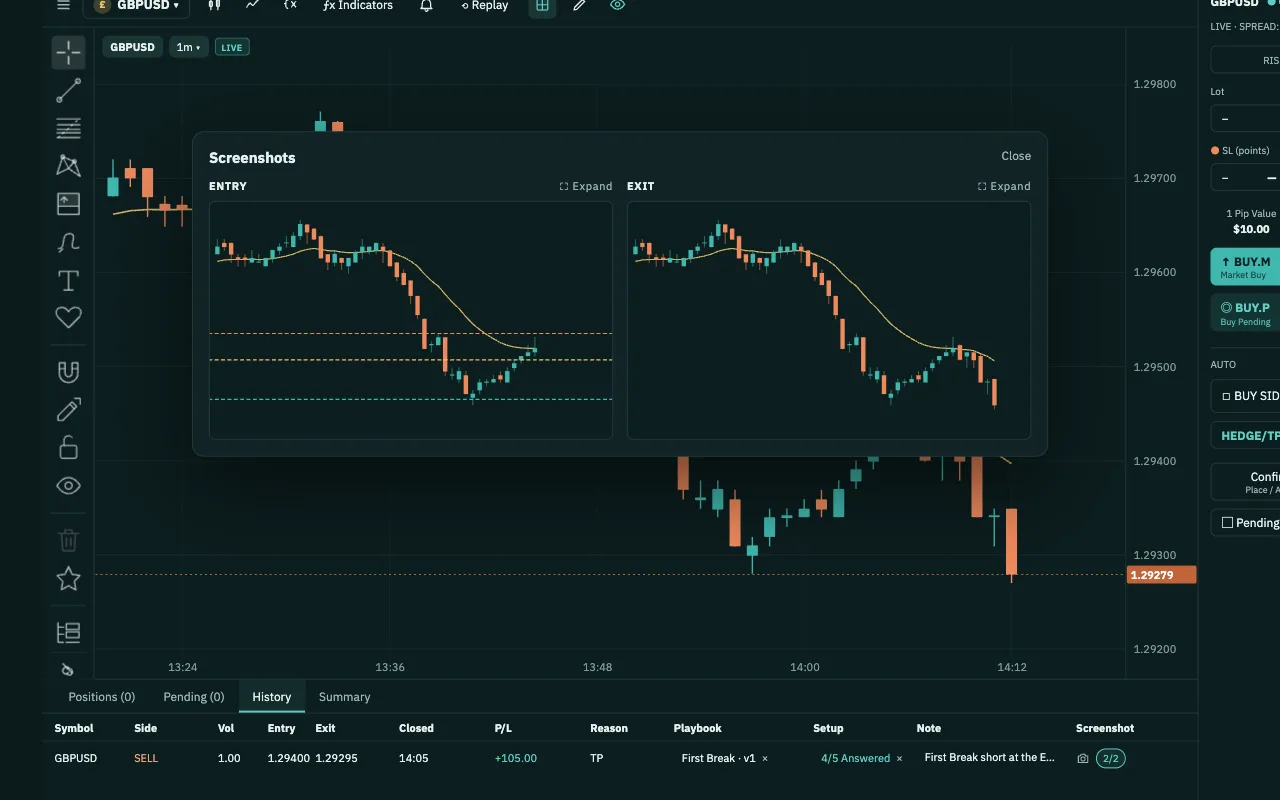
Analyze and manage trades on one screen
Connect MT5 with an EA API key. Your broker's symbols, prices and history fill the charts, and every order you place goes through the PipLoop EA on your own account.
Free plan · No card neededQuestions you might be asking yourself
- Why analyze in one app and place orders in another?In Chart Workspace, the charts and the trade panel share one screen and your broker's own symbol list. Place market or pending orders from the panel, then drag the SL and TP lines right on the chart.
- Will my setup play out the same on my broker's prices?Replay reads price history from your own MT5, so you practise on your broker's candles, not a shared feed. Replay orders are paper trades, and real MT5 orders stay locked until you exit Replay.
- How do I know price hit my level when I'm away from the screen?Set a price alert on bid, ask or last. The server watches it while your MT5 feed is connected and can push it to your phone or browser, on top of the in-app notice and sound.
How Chart Workspace works
- 1Connect your MT5Generate an EA API key in Settings → MT5 Connection and paste it into the PipLoop EA in MT5. Once the account shows Connected, the charts load. A DEMO account works the same way.
- 2Pick a symbol and a layoutChoose from your broker's symbols. Lay out 1, 2 or 3 charts of that symbol, each on its own timeframe, and keep a watchlist with live quotes.
- 3Read the chartChange the chart type, add indicators and draw. Compare another symbol, or chart a formula built from your broker's symbols.
- 4Place and manage the tradeSize by RISK or LOT and enter SL and TP in points. Send a market or pending order, then drag the SL, TP or pending entry on the chart to adjust it.
- 5Set alerts, or replay firstAdd a price alert that can reach your phone, or open Replay and practise the setup on your broker's history with paper orders.
What you get in Chart Workspace
- Your broker's symbols and pricesThe symbol list, quotes, spread and chart history come from your own MT5 account at the broker you choose, not from a shared feed.
- Chart types and indicators20 chart types, from candles and Heikin Ashi to Renko and Market Profile (TPO), plus ~400 indicators. Compare symbols, or chart a Formula.
- 85 drawing toolsWith drawing sync on, a drawing shows on every chart of the same symbol. Undo and redo, hide or show objects, and measure distances with the Points Ruler.
- Orders and SL/TP on the chartBUY.M, SELL.M, BUY.P and SELL.P from the trade panel. Drag the SL and TP lines to change them. Close all, or only buys, sells, winners or losers.
- Price alerts on your phonePrice alerts run on the server while your MT5 feed is connected, with push to your phone or browser. Indicator (Study) and drawing alerts run while the chart is open.
- Replay on your own broker's dataPick a date range or a random start from your MT5 history, set a practice balance and trade it bar by bar. Analytics counts those trades as practice.
You keep your money, your password and the off switch.
- We never touch your moneyDeposits and withdrawals happen at the broker you chose. PipLoop doesn't receive, hold or move your money.
- No broker passwordYou connect with an EA key pasted into your MT5. PipLoop never asks for your broker account password.
- The off switch is yoursTurn AutoDrive off or stop a Flow at any time, from your phone too, and choose to keep or close all positions. To cut the link completely, revoke the key in Settings or remove the EA from MT5.
- Practise on a DEMO accountWe recommend practising on a DEMO account: real market prices, no real money.
Where Chart Workspace fits in the loop
- STEP 1 · PLANPlaybook
- STEP 2 · VERIFYBacktestFlow Builder
- STEP 3 · APPLYChart WorkspaceAutoDrive
- STEP 4 · IMPROVEJournal & AnalyticsCopilot AI
Questions about Chart Workspace
Not in Chart Workspace. You place every order yourself, and it goes through the PipLoop EA on your MT5 to your broker. PipLoop doesn't hold your money and never asks for your broker password.
An MT5 account, DEMO or LIVE, at the broker you choose, with the PipLoop EA running in its terminal. Each account needs its own terminal and its own EA API key. We suggest starting on DEMO.
From your own MT5. Replay requests the symbol's 1-minute history through your connected terminal, so you replay your broker's own candles. When the path inside a bar is simulated, Replay marks it SIMULATED DATA, and paper fills aren't exact to the tick.
Price alerts do. The server watches them while your MT5 feed is connected and can push them to a phone where you've turned on push (on iPhone or iPad, open PipLoop from its Home Screen icon). Indicator (Study) and drawing alerts run only while PipLoop and the chart are open.
Yes. Your charts, layout, drawings and chart settings save to PipLoop as you work, under the connected account, and follow you to your other devices. Workspace history takes you back to an earlier version.
Yes, while you use Chart Workspace. Prices, history and orders all come through the PipLoop EA in your MT5 terminal, so keep it running and logged in to your broker.
Analyze, place and manage your trades on one screen, right on your own MT5.
Free plan · No card needed
Start free